The Ultimate Setup Guide for Your Quietcomfort 35 Ii Gaming Headset
Introduction
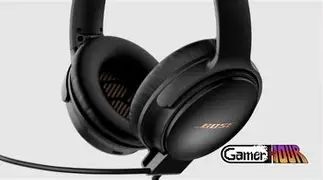
The QuietComfort 35 II Gaming Headset occupies a unique place in the headset market: it blends the travel-friendly active noise cancelling (ANC) comfort of Bose’s QuietComfort line with the practical additions gamers expect, such as a detachable boom microphone and gaming cable options. This guide walks through how the QuietComfort 35 II Gaming Headset performs in real-world gaming scenarios, how to set it up across platforms, what buyers typically care about, and how to optimize the headset for the best possible experience.
What Buyers Typically Care About
Gamers and buyers generally evaluate a headset on a handful of practical criteria:
- Microphone quality: How intelligible and noise-free voice chat is.
- Latency: Delay between in-game sound and what the player hears—critical for competitive play.
- Comfort and fit: Long sessions demand low clamp force and breathable ear cups.
- Sound signature: Accuracy for footsteps and directionality vs. immersive bass for explosions and music.
- Connectivity: Compatibility with PC, consoles, and mobile devices—Bluetooth vs wired.
- Battery life and ANC: For those who want noise cancellation during long sessions and while multitasking.
Quick Product Overview
At its core the QuietComfort 35 II Gaming Headset is the QC35 II with gaming-focused accessories and small firmware and hardware tweaks designed to make it easier to integrate into a gaming setup. It retains the QuietComfort family strengths—strong ANC, plush padding, and reliable Bluetooth—while adding a removable boom mic and cables for chat functionality. With the right configuration it can serve as a comfortable, versatile option for casual and lifestyle gamers who also value noise cancellation during travel or daily life.
Detailed Product Review and Analysis
Comfort and Build Quality
The QuietComfort line is well known for its comfort, and the gaming variant remains true to that reputation. The headset uses soft, deep ear cups and a flexible headband that distributes weight evenly. For marathon sessions, the low clamp force reduces pressure points behind the ears and on top of the head. The materials are primarily plastic with metal-reinforced joints—lightweight but durable. In practice, users find the QC35 II comfortable for long streams, long flights, or competitive gaming sessions where extended wear is required.
Sound Quality
Sound tuning is balanced and polished, suitable for music, streaming, and single-player games. The default profile emphasizes clarity in the mids and a controlled low end. For competitive, directional audio such as footsteps and subtle cues, some players prefer to apply an EQ with a mild treble and upper-bass boost to make footsteps pop. The QuietComfort 35 II excel at timbral accuracy and general listening, but they are not tuned as aggressively for the hyper-localized imaging that some dedicated esports headsets prioritize.
Active Noise Cancellation (ANC)
ANC is a standout feature carried over from Bose’s consumer lineup. In a noisy environment—commuters, busy households, or loud living spaces—ANC reduces constant background noise effectively, improving focus during single-player sessions or streaming. ANC can be used while gaming, but note that when using Bluetooth voice chat, driver and profile limitations may affect microphone and audio performance. ANC is battery-powered, so conscious battery management is necessary for longer sessions.
Microphone and Gaming Module
The gaming edition usually includes a detachable boom microphone or a gaming module that connects to the headset to provide clearer voice pickup than the headset’s built-in communication mic. The built-in mic of the QC35 II performs well for calls and casual voice chat, but it is not a broadcast-grade boom mic. The detachable boom transforms the headset into a more gaming-friendly device, improving clarity and reducing background noise for team chat. For streamers or competitive players who demand the best voice fidelity, a separate USB/XLR microphone remains the recommended choice.
Shop the latest Audio & Headphones picks on Amazon.
See Deals →Connectivity, Latency, and Platform Compatibility
Connectivity is where users must be pragmatic. The QC35 II supports Bluetooth (SBC and AAC codecs typically), allowing easy pairing with phones and many modern devices. For gaming, Bluetooth introduces measurable latency that can be noticeable in fast-paced, timing-critical games. As a result, the headset performs best for gaming when connected via wired 3.5mm cable or a USB audio adapter. Platform notes:
- PC (Windows/macOS): Wired connection provides the lowest latency and full headset functionality; Bluetooth works for casual gaming and mobile streaming but may require adjusting OS audio settings to use the correct input/output profiles.
- PlayStation (PS4/PS5): Wired 3.5mm is straightforward via controller. Bluetooth pairing may be restricted—wired ensures stable chat and game audio.
- Xbox One/Series X|S: Xbox consoles do not natively support Bluetooth audio. Wired connection through the controller or a headset adapter provides the expected experience.
- Nintendo Switch: Wired connection to the Joy-Con grip or dock works well; Bluetooth audio for Switch may be limited depending on model and firmware.
Battery Life, Charging, and Firmware
Battery life is typically around a full day of mixed usage with ANC enabled—expect roughly 15–20 hours depending on volume and ANC intensity. Charging time is moderate and a quick charge for a few hours of use is possible. Keeping firmware up to date (via the Bose mobile app or Bose Updater on a PC) can fix connection quirks and improve microphone behavior with certain gaming modules. Users should periodically check for updates before long travel or major gaming sessions.
Controls and Usability
Physical controls on the headset make it easy to control playback, adjust volume, and toggle ANC without fumbling through menus. The gaming module’s inline controls (if included) usually add volume and mute options tailored to chat. Users appreciate not having to switch apps mid-game to manage basic settings.
Pros & Cons
- Pros
- Very comfortable for long sessions due to soft ear cups and light weight.
- Excellent active noise cancellation for a gaming headset, which helps focus in noisy environments.
- Versatile: works well for music, travel, and casual gaming.
- Detachable boom mic (gaming edition) improves voice quality for chat.
- Smooth physical controls and decent battery life with ANC.
- Cons
- Bluetooth latency can be noticeable in competitive gaming—wired is preferred.
- Microphone quality—even with the detachable boom—lags behind dedicated standalone mics.
- Not purpose-built for esports: positional audio and virtual surround can be less precise than some gaming headsets.
- Price can be higher than entry-level wired gaming headsets offering similar chat performance.
Comparison Table
| Feature | QuietComfort 35 II Gaming | SteelSeries Arctis 7 | HyperX Cloud II | Sony WH-1000XM3 |
|---|---|---|---|---|
| Primary use | Lifestyle + gaming | Wireless gaming | Wired gaming | Lifestyle (ANC-focused) |
| ANC | Yes (strong) | No (passive) | No (passive) | Yes (industry-leading) |
| Mic quality | Good with detachable boom | Good gaming mic | Very good (detachable) | Average (calls with built-in) |
| Wireless latency | Bluetooth (moderate) | Proprietary low-latency wireless | Wired only | Bluetooth (moderate) |
| Battery life | ~15–20 hrs | ~24 hrs | Wired (N/A) | ~20–30 hrs |
| Comfort | Excellent | Very good | Good | Excellent |
| Best for | Casual gamers who also travel and listen to music | Gamers wanting wireless low-latency | Budget-conscious gamers wanting strong mic | Music and travel with great ANC |
Buying Guide: How to Decide if This Headset Is Right
When considering the QuietComfort 35 II Gaming Headset, evaluate usage patterns and priorities.
1. Is low latency essential?
If the user plays highly competitive FPS or rhythm games where every millisecond counts, Bluetooth will not be ideal. In those cases, look for headsets with proprietary low-latency wireless or stick to a wired connection. The QuietComfort 35 II performs best in gaming when used via the wired connection.
2. How important is microphone fidelity?
For casual team chat and in-game coordination, the detachable boom will suffice. For streaming or content creation, a dedicated USB/XLR microphone will deliver substantially better clarity and presence.
3. Does the buyer travel or use the headset outside the home?
Those who want one headset for travel, work-from-home, and occasional gaming will appreciate the QC35 II’s ANC and comfort. It’s a strong all-around choice for mixed-use scenarios.
Shop the latest Audio & Headphones picks on Amazon.
Shop Amazon →4. Platform compatibility
Confirm how the headset will connect to the intended devices. Wired 3.5mm is the most universally compatible. If the primary platform is Xbox, remember that Bluetooth is not a reliable route on Xbox consoles—wired remains the recommended method.
5. Accessories to consider
- High-quality 3.5mm cable with inline mute for console chat
- USB sound card (DAC/amp) for improved PC audio and mic handling
- Standalone boom mic or USB/XLR mic for streaming
- Replacement ear pads for heavy use or allergies
Step-by-Step Setup Guide
Initial Checks and Charging
- Unpack and inspect the headset and any included gaming module or cables.
- Charge the headset fully before first use. A full charge ensures firmware updates can complete and battery life calibrates more accurately.
- If the gaming edition includes a detachable boom, attach it to verify it seats securely and mute/unmute functions work as expected.
Firmware and App
- Install the Bose mobile app (or use the Bose Updater on a PC) to check for firmware updates. Updates can improve wireless stability and accessory compatibility.
- Follow the app prompts to complete any updates while the headset is connected and charged.
Wired Setup (Recommended for Gaming)
- Use the supplied 3.5mm cable to connect the headset to a controller, phone, or PC headphone jack. For PC, connect to the headset jack or a dedicated sound card input.
- On consoles, verify voice chat settings route incoming and outgoing audio to the controller/headset rather than TV speakers.
- For PC, open sound settings and set the headset as both the default output and input device if the detachable boom is in use.
USB and DAC Options
For improved audio fidelity and microphone handling on PC, a USB audio adapter (USB DAC) can convert analog signals to digital and may provide better mic gain control. Plug the headset into the DAC, then select it in the OS audio settings. Many gamers use small USB sound cards to avoid Bluetooth profile limitations and to leverage hardware echo-cancellation or software processing.
Bluetooth Setup (For Mobile and Casual Play)
- Put the headset into pairing mode using the power/Bluetooth switch or the Bose app’s pairing workflow.
- On the device, choose the headset from the Bluetooth list. If the device prompts for a profile selection, choose "Headphones" for stereo audio and "Hands-free" for calls—note that using the hands-free profile will lower audio quality but allow microphone use over Bluetooth.
- For PCs, pair through the OS Bluetooth settings and verify which Bluetooth audio profile is active; adjusting to the A2DP profile will improve audio quality for music but may disable the Bluetooth mic at full fidelity.
Console-Specific Tips
- PlayStation: Use the controller’s 3.5mm jack for wired chat and game audio. Bluetooth pairing is possible, but wired is simpler and more stable.
- Xbox: Use the controller’s 3.5mm jack or an Xbox headset adapter. Xbox does not support generic Bluetooth headsets for chat, so wired is the default solution.
- Nintendo Switch: Wired to Joy-Con grip or dock typically works best. Wireless options vary by firmware.
Optimizing Mic and Voice Chat on PC
- Open the OS sound control panel and select the headset input. Set input gain to a neutral level and test with teammates or a recording app.
- Disable automatic mic enhancements if they introduce artifacts—many gamers prefer a clean signal and let chat apps handle noise reduction.
- Consider using in-game voice sensitivity settings or the chat app’s noise suppression to reduce background noise while preserving clarity.
Troubleshooting Common Issues
Common problems and quick fixes:
- Low microphone volume: Check OS input gain, attach the detachable boom securely, or use a USB sound card which provides better preamp gain.
- Bluetooth dropouts: Move the paired device closer, remove interfering Wi‑Fi/Bluetooth devices, or switch to wired mode for stable gaming.
- ANC not working: Ensure the headset has sufficient charge and that ANC is not disabled in the app or via the headset controls.
- Audio balance skewed: Verify left/right balance in OS settings and in any third-party audio software.
Maintenance and Care
Extend the life of the headset with these simple steps:
- Store the headset in its case when not in use to protect ear pads and the headband.
- Wipe ear pads and headband with a dry or slightly damp microfiber cloth; avoid harsh cleaners.
- Remove and replace ear pads when they show heavy wear; replacement pads restore comfort and seal.
- Disconnect detachable parts gently and avoid yanking cables; replace cables if they show fraying or intermittent connection.
Conclusion
The QuietComfort 35 II Gaming Headset is an attractive option for the gamer who wants a single headphone that bridges travel, daily listening, and gaming. Its comfort, active noise cancellation, and adaptable setup options make it well suited to casual and lifestyle gamers who prize versatility. With the detachable boom mic and wired connectivity, it can handle voice chat adequately, though players who demand razor-sharp, competition-grade latency and microphone fidelity may prefer specialized esports headsets or a dedicated microphone. By following the setup steps above—charging, updating firmware, preferring wired connections for critical gaming, and tuning PC audio—users can extract the best possible gaming experience from the QuietComfort 35 II Gaming Headset while enjoying the headphone’s strengths outside of gaming sessions as well.